
Extract first frame
Creates one image from the start of the video. Use it for opening slates, simple preview images, or a quick compatibility test before processing more frames.
Video to Frames
Turn a local video into JPG or PNG images in your browser. No upload or login: choose a file, select how many frames you need, and download the results.
Estimated output: 0 frame(s)
No frames extracted yet.
Browser-based frame extraction
Use the tool to extract frames from video online without sending the source file through a server upload queue. Choose first-frame capture, FPS-based sampling, or fixed-count extraction for thumbnails, scene previews, review contact sheets, and small image batches.
You can export frames as JPG for lighter files or PNG for lossless output. Every result includes a timestamp, making it easier to compare nearby moments before downloading one frame or the complete set.
Need a different workflow? Convert MP4 to frames for an MP4 image sequence, extract a specific frame at a chosen time, or get the first frame automatically.
About the workflow
Video to frames describes the process of decoding a video and saving selected moments as separate image files. When you convert video to frames, a frame extractor isolates useful stills from the timed image sequence instead of making you pause playback and take screenshots.
This browser tool can turn the beginning of a clip into one image, distribute a chosen number of frames across the full duration, or sample the video at a selected FPS rate. It converts video frames to images that can be reviewed beside their timestamps and exported individually or as a batch.
Most users do not need to think about the decoding method. Choose the general tool for a flexible batch, or open MP4 to frames when the source format and image sequence are the main focus.
Extracted images are useful for thumbnails, documentation, editing references, visual inspection, storyboards, presentations, and review. They preserve the original video file while giving you independent JPG or PNG images that are easier to compare, share, annotate, or place into another project.
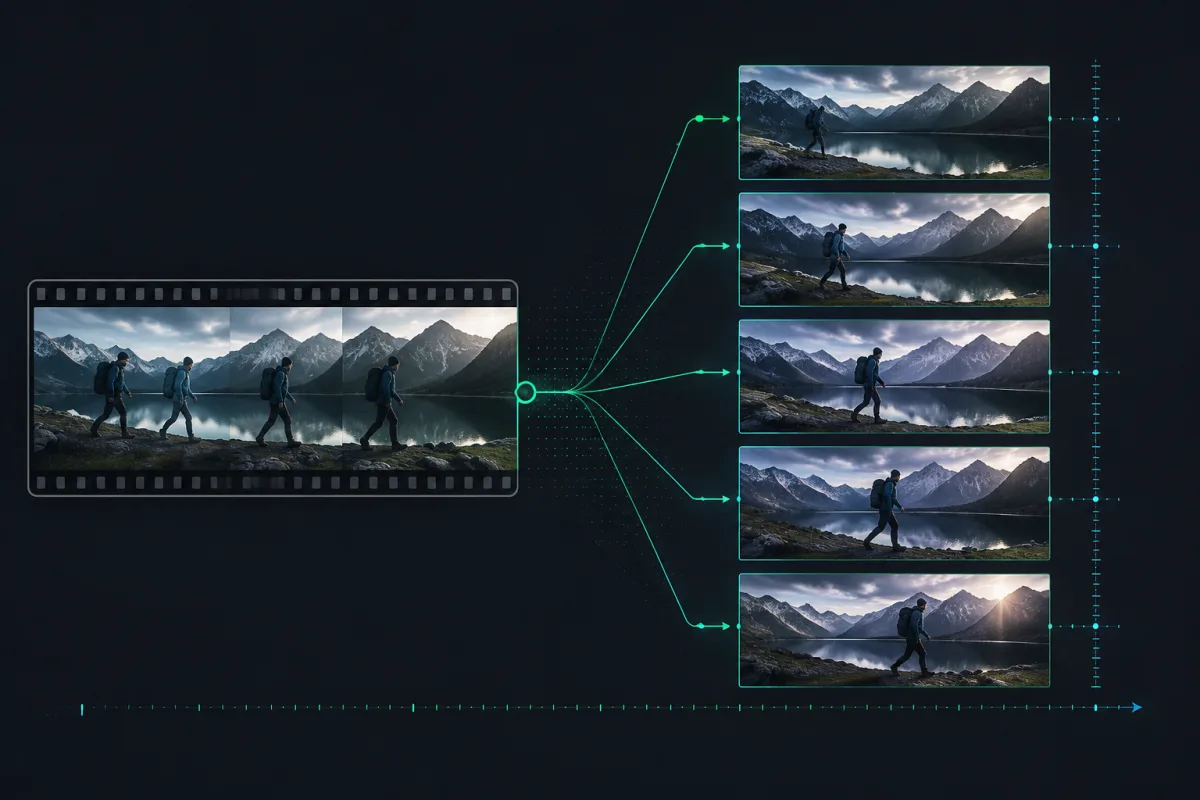
Three simple steps
Choose an MP4 or another browser-readable video file. The current file limit is 1 GB. This is the first step when you want to get frames from video while keeping portrait or landscape proportions inside a fixed 16:9 preview area.
Select first frame, FPS, or fixed frame count to control how the tool will extract video frames. Then choose JPG and adjust quality for smaller files, or select PNG when lossless output matters more than download size.
Run the extractor, review each frame beside its timestamp, and download individual images as needed. Use Download ZIP when you want the complete sequence in one ZIP archive for review or editing.
Understand the controls
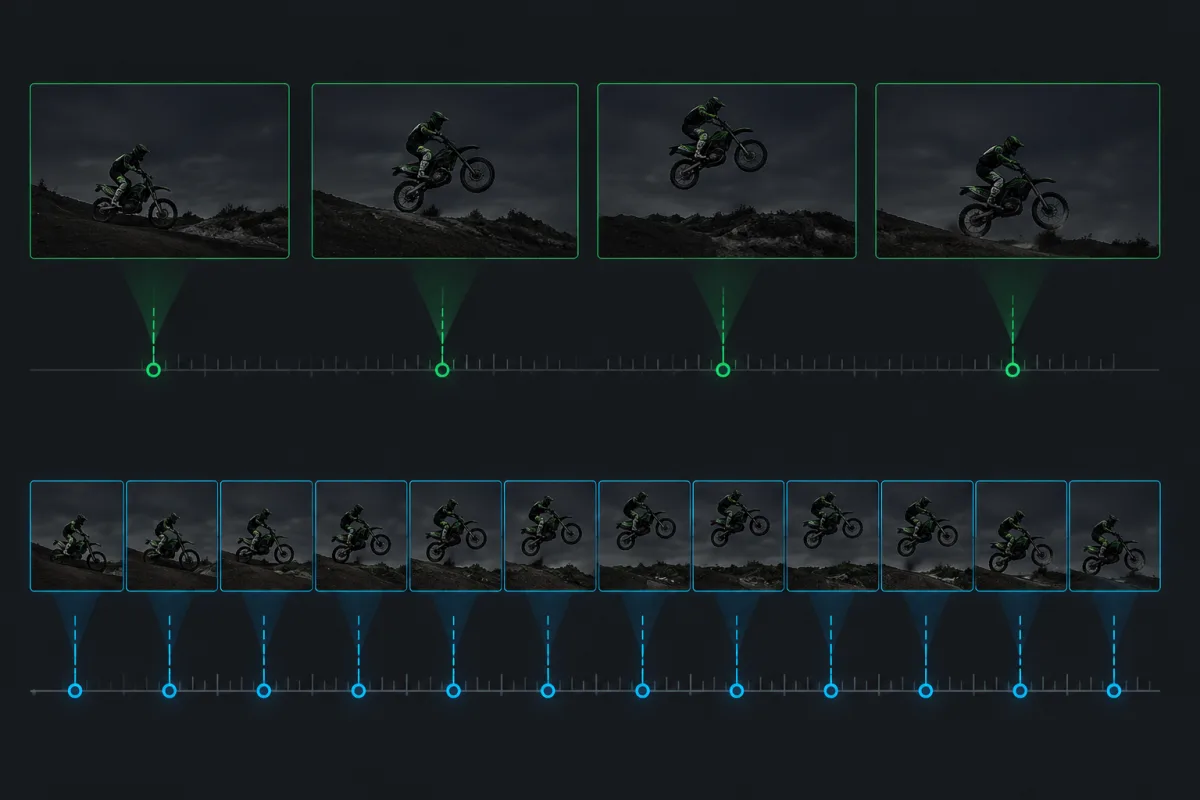
The best settings depend on whether you need one specific still, broad coverage of a clip, or a denser sequence for motion analysis. More frames are not automatically better: they require more decoding time, more browser memory, and more output files to inspect.
Creates one image from the start of the video. Use it for opening slates, simple preview images, or a quick compatibility test before processing more frames.
Spreads a chosen number of timestamps across the clip. This is useful when you want predictable output, such as 10 or 20 representative images from a video of any duration.
Use this mode for regular time intervals. A setting of 1 FPS requests about one image each second; higher values create denser coverage until the 150-frame limit is reached.
JPG quality affects compression and file size but does not change the number of frames. PNG preserves image data without JPG compression, which usually produces larger files.
Built for practical work
Extract the images you need without creating an account, uploading your video to our server, or waiting in a processing queue. The tool is free to use and keeps every downloaded frame clean and ready for your project.
Your video stays in your browser during frame extraction. It is not uploaded to our application server for processing.
Start extracting as soon as your browser reads the video. There is no account setup or server upload queue.
Use the tool again whenever you need it, with no signup or usage credits. Each extraction can create up to 150 frames.
Download individual JPG or PNG frames, or save the full set as a ZIP. We do not add a logo or watermark to the images.
Practical guidance
You only need to make three basic choices: how many frames to extract, whether to use JPG or PNG, and how much JPG compression you want. Start small, check the results, and adjust only when needed.
Lower the quality for smaller downloads. Raise it when fine details matter more than file size.
Use JPG for photos and smaller files. Use PNG for sharp text, interface recordings, graphics, or later editing.
Choose First frame for one image, Frame count for a fixed batch, or FPS for regular snapshots throughout the video.
Start with one frame or a low frame count. If you need more coverage, increase the count or FPS and extract again.
Different workflows
Different video frame extraction jobs need different settings. Thumbnail creation favors speed, content review needs broad coverage, and visual analysis benefits from a denser frame sequence.
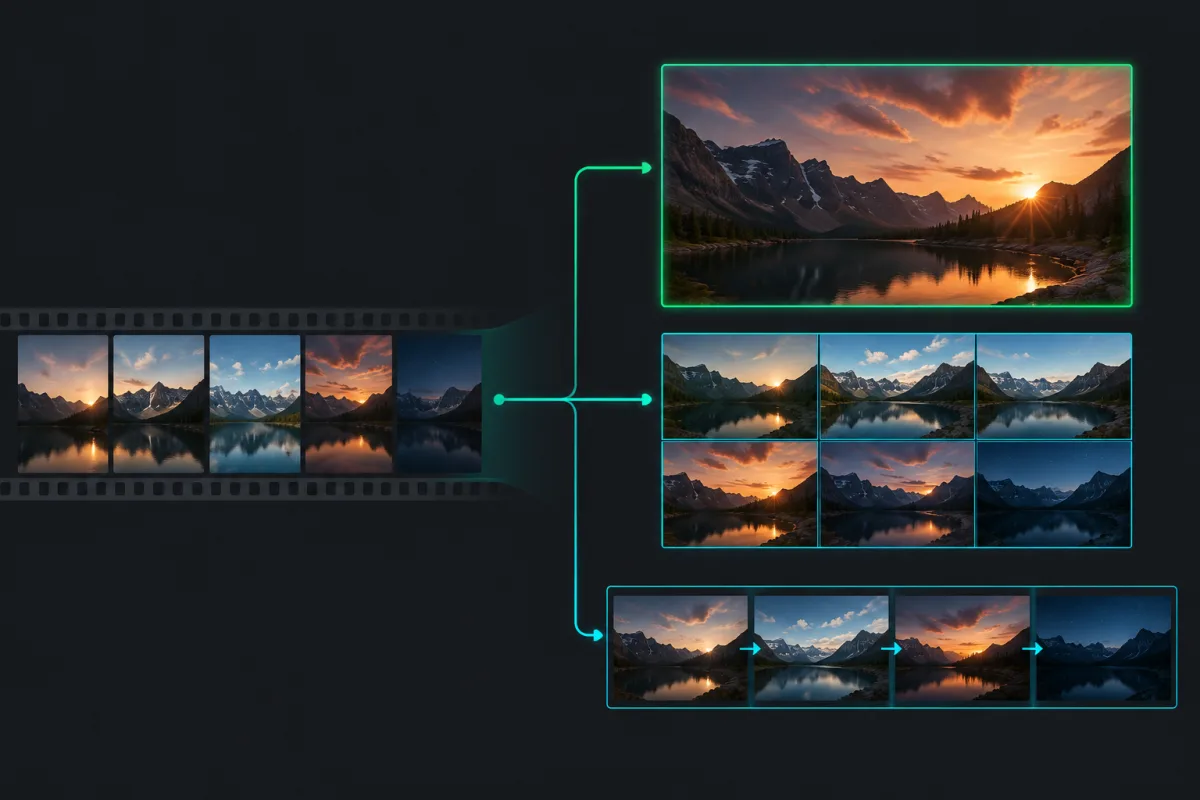
Use a low fixed frame count to compare several representative moments. JPG is usually sufficient for web publishing, social previews, and lightweight cover images.
Sample a clip at regular intervals to understand its overall content without repeatedly scrubbing the timeline. Start with a low FPS and increase only around sections that need closer inspection.
Use denser FPS extraction for short clips when you need to compare movement, transitions, demonstrations, or scene changes.
Generate a controlled frame count, compare timestamps, and save the strongest visual moments as references for editing, shot planning, presentations, or documentation.
PNG output can preserve crisp text and interface details from screen recordings. Extract only the steps that clarify the workflow instead of producing a large sequence of nearly identical images.
For most videos, begin with 10 or fewer representative frames, inspect the timestamps and image quality, and increase the output only when the first sample does not provide enough detail.
Common questions
You can create a single opening image, a fixed set of representative frames, or a sequence sampled at regular time intervals. Choose JPG for smaller files or PNG when you need lossless output.
The selected video is processed locally in your browser and is not uploaded to a Video to Frames application server for extraction. Your downloaded JPG or PNG files remain under your control.
MP4 usually works best because it is widely supported by modern browsers. Other formats may also work, but support depends on the video codec, device, and browser. If a video cannot play in a normal browser tab, it may need to be exported again in a common format.
Yes. Use First frame for the opening image, or open the Video Frame Extractor when you need to move to a specific moment and save one selected frame.
Yes. After extraction, use Download ZIP to save the complete JPG or PNG sequence as one archive. You can also download individual frames when you only need a few images.
Choose JPG for smaller files, quick previews, thumbnails, and photographic scenes. The JPG quality control lets you balance file size and visible detail. Choose PNG when you want lossless image output for graphics, text, interface recordings, or frames that will be edited again.
The interface is responsive and can extract frames on modern mobile browsers. Processing speed and memory limits vary by device, so long, high-resolution, or high-frame-rate videos are usually easier to handle on desktop. On mobile, begin with first-frame mode or a small fixed frame count.
The current tool limits one extraction run to 150 frames. This protects the browser from unexpectedly large memory use and excessive download output. If FPS settings would generate more than 150 images, the result is capped. For a long video, lower the FPS or choose a fixed number of representative frames.
Video decoding depends on timestamps, keyframes, codec behavior, and browser support. The tool requests frames at calculated points and displays the associated timestamps, but some browser decoding paths may return the nearest decodable image rather than an editing-suite-level exact frame. Increase sampling density when you need a closer choice.
The extractor uses the decoded video frame dimensions exposed by the browser and exports the canvas at those dimensions. It does not intentionally resize the frame. Actual output can still depend on browser decoding, source rotation metadata, codec support, and JPG compression quality.
Long duration, high resolution, dense FPS sampling, and PNG output all increase the amount of decoding and image data the browser must handle. The source file stays local, but local processing still uses device memory and CPU time. Start with a small sample before requesting a larger frame sequence.